
Video to Text Transcription
It's 11 p.m., you just wrapped a 45-minute Zoom interview, and the piece is due at 9 a.m. You need every usable quote in writing, and you need it right. That might be when you turn to the notes you furiously scribbled in the margins, hoping you got down something good. But that’s not the only way to take notes nowadays.
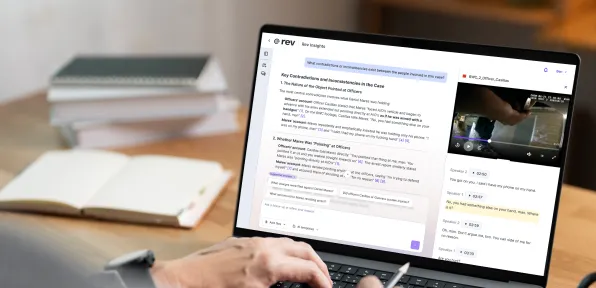
With modern transcription tools like Rev, you can take any video and turn it into a written, searchable document you can actually work with. All in just a few minutes!
Whether you're pulling quotes from an interview, prepping captions for a webinar, or building a record of a client call, a good video to text converter turns hours of footage into something you can skim, search, and reuse in minutes instead of hours.
How To Transcribe A Video To Text
Transcribing a video comes down to three steps: upload your file, add your service/additional features, and download the finished transcript. Rev handles all three in one place, so you're not bouncing between a converter, a separate editor, and a captioning tool just to get one video turned into text. Here's what that looks like in practice:
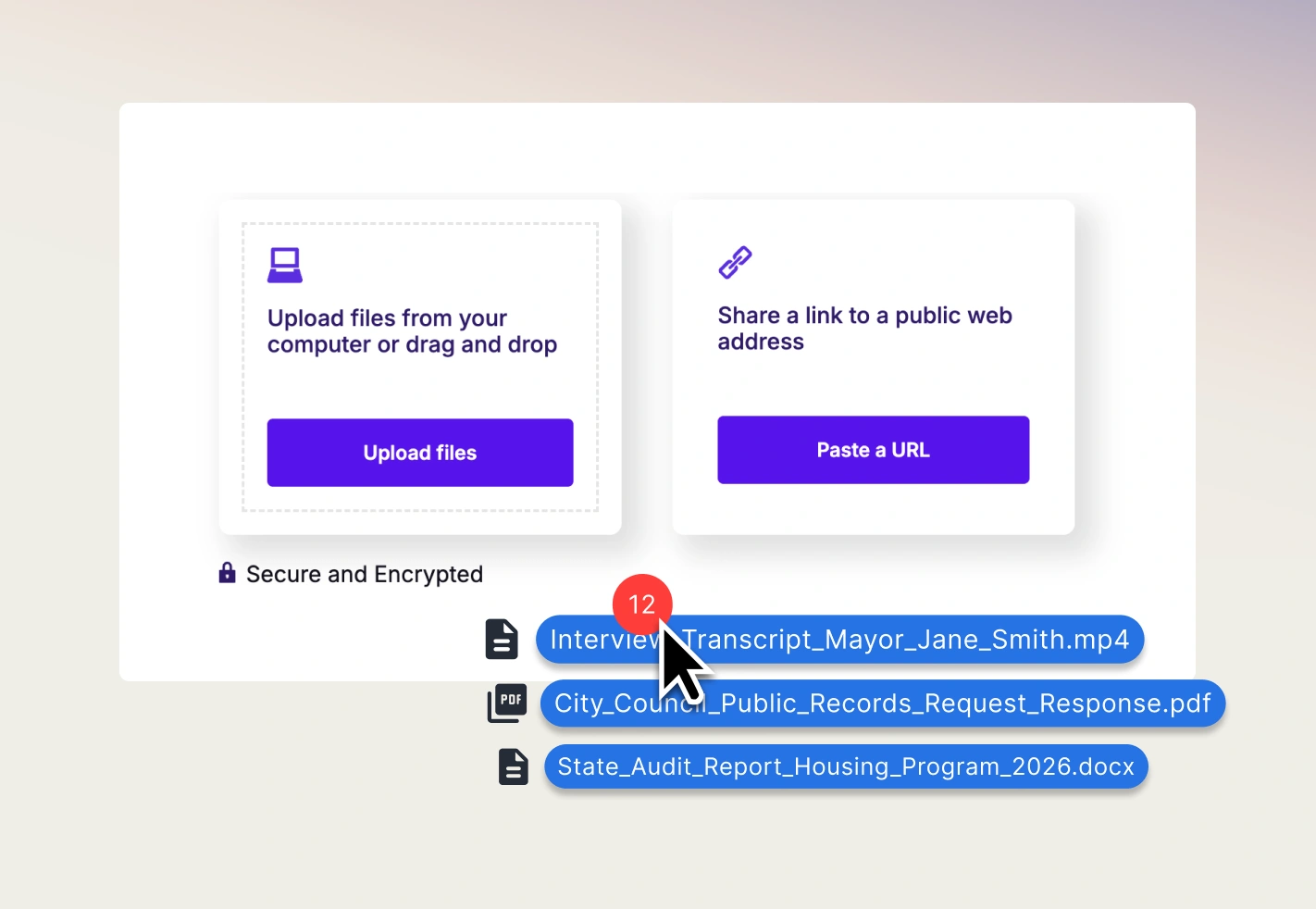
1. Upload Your File
Start by dragging in your video — formats like MP4, MOV, and other common options work — or paste a link straight from Zoom, YouTube, or Google Drive. You can upload from a browser or the Rev mobile app, which also doubles as a recorder if you need to capture something on the spot.
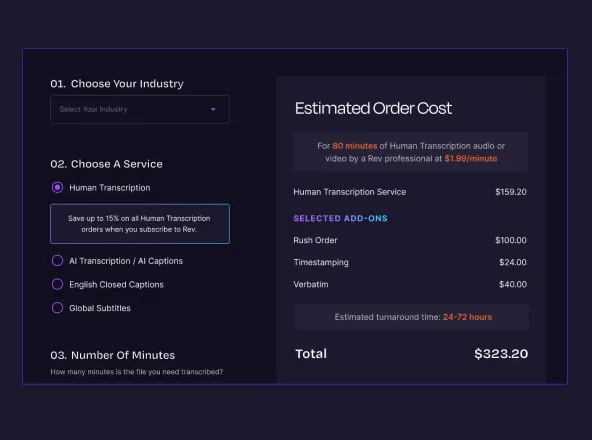
At upload, you'll choose how the file gets handled: AI transcription, which is faster and cheaper, or human transcription, where a professional transcriptionist reviews and finalizes the text. Both options work well for transcribing a video online without installing anything, but you can learn more about the differences between AI and human transcription on our blog.
Hint: If you transcribe often, subscribing to Rev is cheaper than paying per minute every time.
2. Choose Your Add-Ons
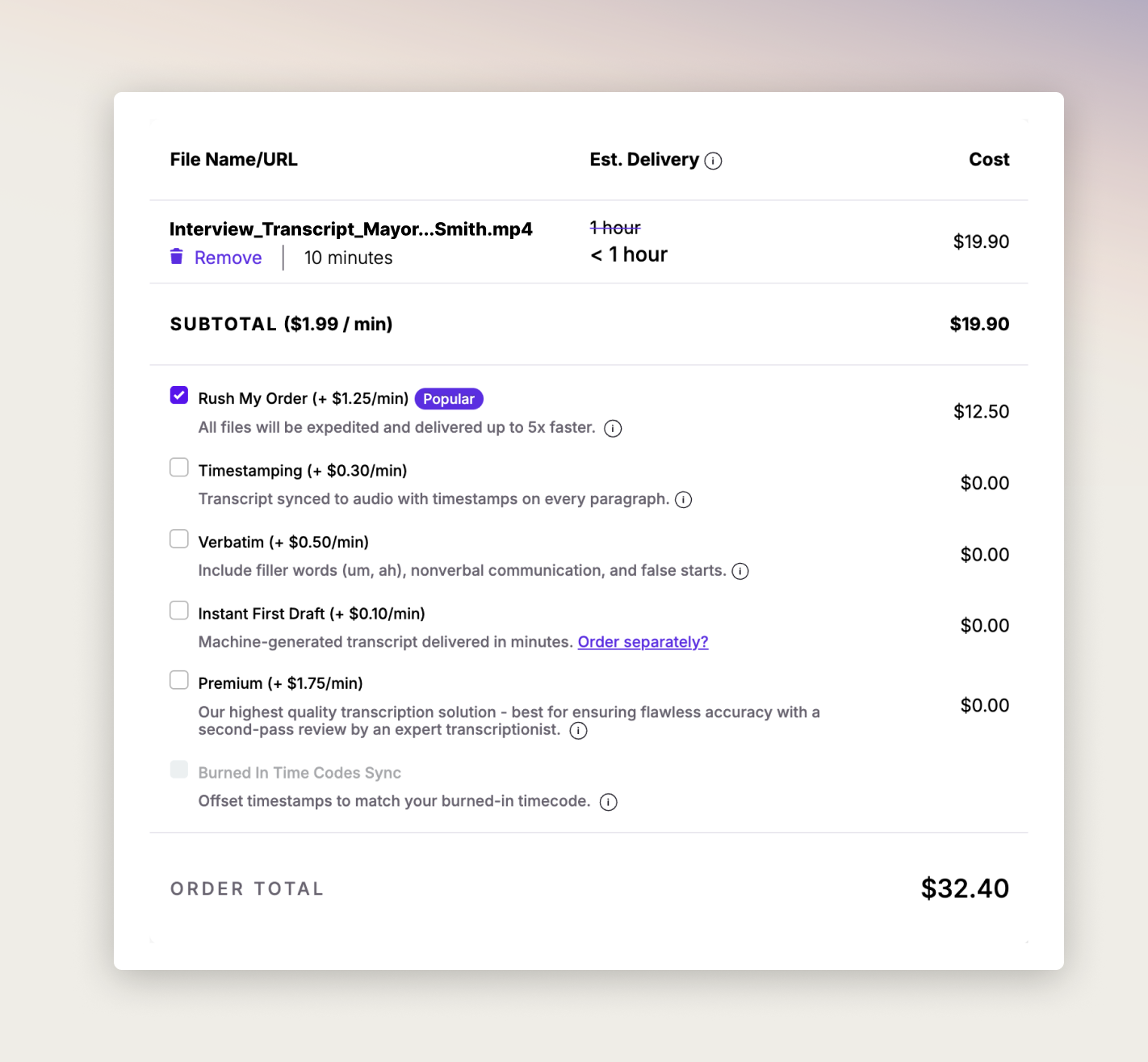
Once your file is uploaded, you can layer on a few add-ons depending on what you're using the transcript for:
- Rush delivery: get your order back up to 5x faster than standard turnaround.
- Price: $1.25/min
- Verbatim transcription: Transcripts will include filler words (um, ah), nonverbal communication, and false starts.
- Price: $0.50/min
- Timestamps: Time-codes each line so you can click any word and jump straight to that moment in the video.
- Price: $0.30/min
- Instant first draft: Machine-generated transcript delivered in minutes.
- Price: $0.10/min
- Premium transcript: Ensure flawless accuracy with a second-pass review by an expert transcriptionist.
- Price: $1.75/min
- Captions: Burn-in-ready subtitle files for the video itself, not just a standalone document.
- Price: $1.99/min English, $3.25/min Spanish
- Global subtitles: Translated subtitles across 17 languages, for videos going to an international audience.
- Price: $6.49–$15.99/min depending on language
Speaker labels come standard on every transcript, AI or human, so you already know who said what without listening back a second time — no add-on required.
3. Get Your Transcript
AI transcripts are typically ready in under five minutes. Human transcripts take 12 hours or less, and Rush cuts that down further if you're on deadline. Either way, your finished transcript lands in Rev's interactive editor, where you can analyze your transcript, ask it questions via our AI, create clips, adjust timing, and export to a variety of file formats like DOCX, PDF, TXT, SRT, and VTT.
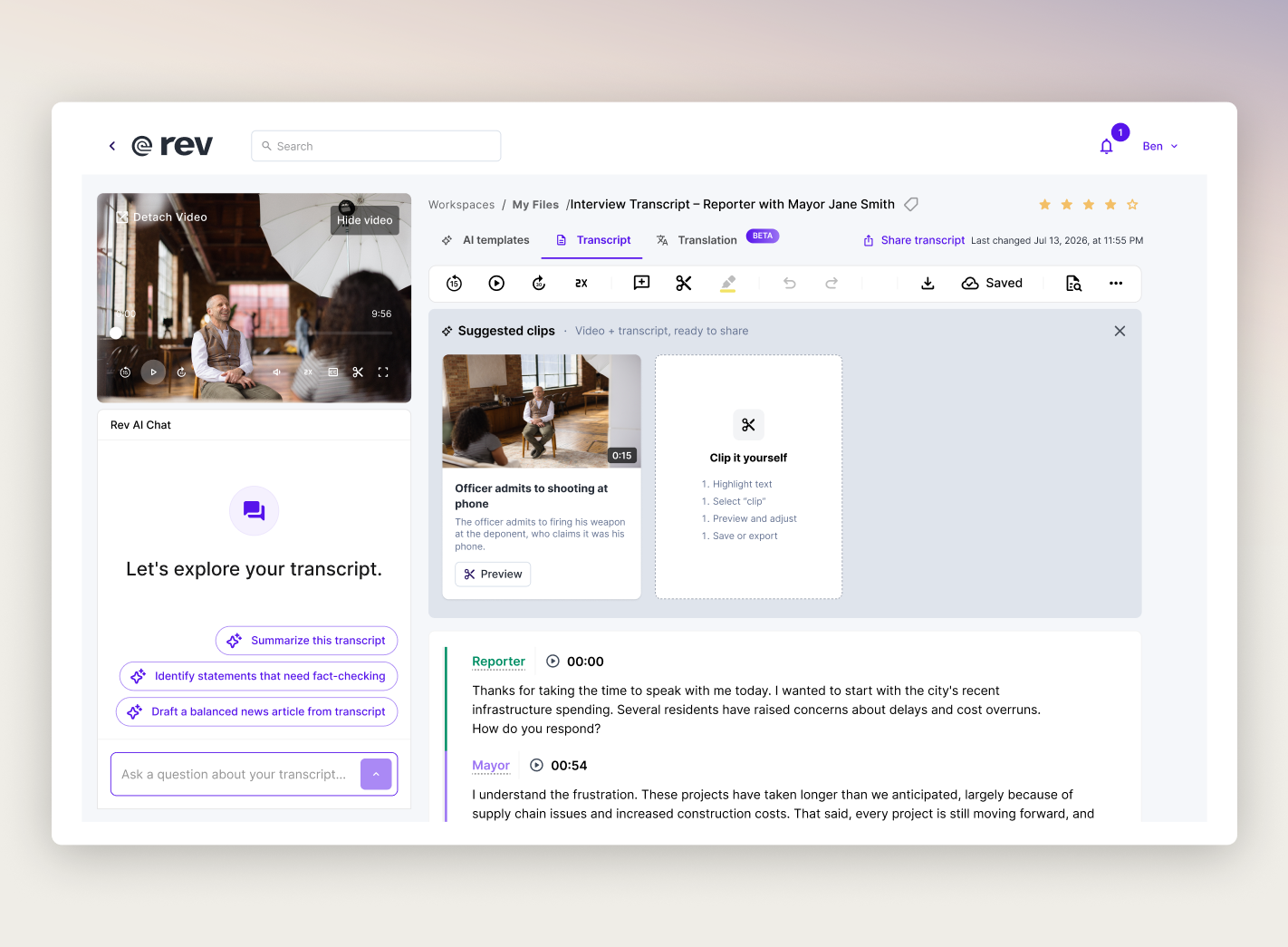
Check out our guide to using Rev’s transcript editor.
Why Choose Rev For Video Transcripts?
Plenty of tools will create a transcript from a video. The difference lies in how usable that transcript actually is once you have it. Rev has transcribed over 93.7 million hours of speech and works with more than 1.3 million users, from solo podcasters to enterprise legal teams.
A few things worth knowing about Rev before you pick a video transcriber:
- Accuracy that holds up: 96%+ with AI, 99% guaranteed with human review, even with multiple speakers, accents, background noise, or overall low audio quality. That’s ahead of Otter, Google, and Amazon!
- Speaker labels built in: Every transcript shows who's talking, automatically.
- Built-in clipping: Suggested Clips surfaces key moments automatically, and you can drag-select your own clips right on the timeline and batch-download them.
- Fully searchable text: Every line is tied to a timestamp in the original file, so you can search across a transcript instead of scrubbing through footage to find a moment.
- Security that scales with the work: SOC 2 Type II, HIPAA*, and CJIS compliant, with zero data sharing to third parties.
*Unlimited plans only
But don’t just take our word for it. Here’s what some of our customers have to say about working with Rev:
- “I find Rev incredibly helpful and efficient as a legal researcher, writer, paralegal, and pro se litigator. The transcription services offer great accuracy, and having access to a human transcriber for audio that the AI struggles with is the most important tool for me.” - Verified User on G2
- “I appreciate that Rev is fast and reliable. I like being able to edit the transcript right in the Rev interface and change the speaker names throughout for easier quoting. I also like the AI summary tab, because it helps nail down a story angle and points me toward the most quotable interview areas.” - Sara G. on G2
- “We have a lot of audio and video content that is often hours-long, and having a person transcribe or take notes on it would take days. Rev does it for us in minutes. The best part about it is the summary it provides for every file. I do a lot of social media posting based on videos and panels, and watching/reading the transcript for a whole panel for a post can be taxing. Rev just summarizes all the important points for me so I can skim and draft a post.” - Mariam A. on G2
How Long Does It Take To Get A Video Transcribed With Rev?
Getting a video transcribed with Rev takes under 5 minutes for an AI transcript, and under 12 hours for a human transcript (with rush options available).
The gap between the two comes down to what's checking the work: AI transcription runs the audio file(s) through Rev's speech recognition model and hands the text back immediately, while human transcription routes the file to a professional transcriptionist who reviews it line by line before it's finalized.
For a rough first draft, quotes for a deadline, or searching a long recording, AI is usually enough. For anything going to publication, or somewhere else where accuracy can't be a question, human transcription is worth the wait. We also offer legal rough draft and premium services for internal review or case prep.
More Speech-To-Text Resources
Transcribing an audio or video file is usually just the first step. Below are more resources on where to go next, depending on your goals:
- Building An Airtight Timeline With AI Transcription
- How To Analyze Interview Transcripts In Qualitative Research
- Benefits Of Using Transcription In Academic Research
- 12 Ways To Repurpose Video Transcripts
- Podcast Repurpose Made Easy With Transcription
- How To Incorporate Transcripts Into Your Pre-Production Workflow
- How To Edit Videos Using Transcription
Turn Your Next Video Into Text In Minutes
Once you've used Rev to transcribe one video, it's hard to go back to typing things manually. Upload your file, pick AI or human review, and let Rev turn your video to text — accurate, searchable, and ready to use, whether that's for tonight's deadline or a recording you've been meaning to get to for weeks.


Subscribe to The Rev Blog
Sign up to get Rev content delivered straight to your inbox.