
Rev's Transcript Editor Overview
Rev’s transcription editor allows you to refine, analyze, and share your transcripts with ease. Get the most out of your transcripts with this guide from Rev Academy.

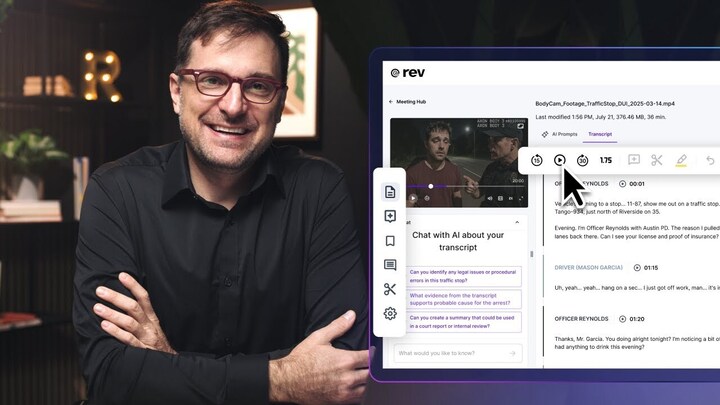
The transcript editor is where the magic happens in Rev. It's your command center for refining, analyzing, and sharing your transcripts. So let me show you all the powerful tools available at your disposal.
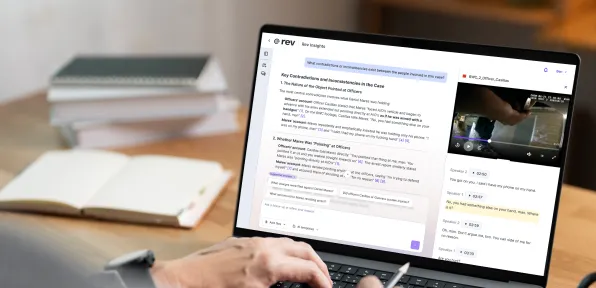
So once I click on a file—in this case, we're looking at some body cam footage—I want to call your attention to several different things. First of all, the file lands on the AI prompt section. This is a great way to get summaries and analysis of the particular content. In future videos, we’re going to do a deep dive into AI prompts, but just calling out right now—this is where you land.
So we're going to then click on the transcript tab. From here, you're going to see several things in the user interface. First of course is the audio or video that you uploaded. In the case of video, you're going to see the video, you're going to see the superimposed closed captioning on top of the video, and you have, of course, lots of playback controls.
Editing the Transcript
As you play the video, you are going to be able to follow along in the transcript at that particular point in time. And you have a lot of things that you can do with the transcript itself because it's a live, editable environment. It's very Google Docs-like.
So here we see that we have multiple speakers. In this case, we've got a driver and a police officer. The first thing that we can do is we can edit these speaker names. So if we want to change the driver to say, I dunno, we'll call him Bob. Now, one edit and one change across the entire transcript follows suit.
From there, you have the ability to edit the transcript in-line. So if there are areas where you need to add, modify, or change words, you can do so. You have the ability to highlight portions of the transcript. Maybe you want to reference it for later. So you might want to add a comment, or maybe you want to highlight a section, and you can color-code it again for future reference—very easy to do.
Clipping and Downloading Content
One of the particularly powerful features that I really love is the clipping. So if you have a larger bit of audio or video, but you want to clip just a certain portion of that, you can do that very easily. Say here, I want to clip from where the police officer is talking at minute 1:06 all the way down to minute 4.
Once we highlight the entire portion that we want to clip, it's very easy to save that clip. And what happens is it’ll actually cut your audio or your video file down and allow you to export it. You will also have a transcript that you can download just from that portion.
So it's a very easy way to shrink down larger bits of content.
We have the ability to download the entire transcript as a whole. You can see in the settings for downloading, you can pick multiple different output formats. You can pick multiple file types—Word doc, PDF, text file. You can include or not include things like speaker names, paragraph timestamps, etc.
And once you export that, a really cool and powerful feature is—say you export the Microsoft Word doc of the transcript and you close this window—you can actually look at that Word doc and there will be timestamps with hyperlinks that will shoot you directly to this file, then directly to that portion within the file. So we make it really easy for you to reference your content even when it's saved locally on your machine.
Advanced Editing and Review Tools
Other things you can do: global search and replace throughout the entire transcript. If there is an industry term or a specific name of something that perhaps is misspelled, and you want to very quickly replace all of it, you can do so.
We also have the ability to look at low confidence words. So we know that these transcripts, these AI-powered transcripts, are about 96% accurate by default. And if there's any areas where the automated speech recognition engine is not so confident about what it's transcribing, we can have that be highlighted with the low confidence words. So that’s what that means.
Outside of that, you have a bunch of different options on the right-hand column that you can select. If you'd like to upgrade to Human verified transcripts to get that 96% accuracy as close to 100% as possible—99.9%+—you can choose your Human verified option there.
And we have a transcriptionist network of over 70,000 transcriptionists that can go in and ensure all of this is very buttoned up and very accurate.
Sharing, Downloading, and Collaborating
You have the ability to download the media. So what this means is, say this file is shared with you, but you don't have the original video, and you would like it for some purpose, you can download the raw upload.
You can also share this file, and we have many ways to share. You can share with just one person on your account. You can share with everyone on your account. Everyone gets notified, and they see it in their “file shared with me” in the left-hand portion.
And you also have the ability to share externally if you wish—even with people that don’t have a Rev account.
More coming soon as we deep dive on sharing.
Comments, Bookmarks, and Editor Settings
Any of the bookmarks that we create can be stored here. Any of the comments we create are stored right here as well. Again, the clips we talked about earlier. And we have some additional editor settings, including some keyboard shortcuts and other niceties that it's good to have a look at when you get a chance.
AI Transcript Chat
Finally, one of my favorite features is the AI transcript chat. So this is where you can ask a set of questions that you might want to find out based on this particular file.
You see it already pre-populates, and this is always customized to the transcript itself. It pre-populates things it thinks you might be interested in.
So you can either click on one of these—in this case, “What happened during the traffic stop?”—sure, let's check that out. Or you can type your own questions or AI prompts.
It is really great to find discrepancies in something that somebody said throughout the transcript, or maybe key terms or repetitive words—whatever you want to find out, you can do so very easily.
Wrapping Up
So once you master these tools, you’ll transform how you work with recorded content.
This wraps up our transcript editor tour, so we’ll be back soon with more tips from Rev Academy. So please stay tuned.

.webp)